How to Set Up Messenger Auto Reply: A Complete Step-by-Step Guide
Learning how to set up Messenger auto reply is one of the simplest ways to improve customer communication. A well-crafted auto reply acknowledges every message instantly, sets clear expectations, and helps businesses deliver a faster, more professional customer experience.
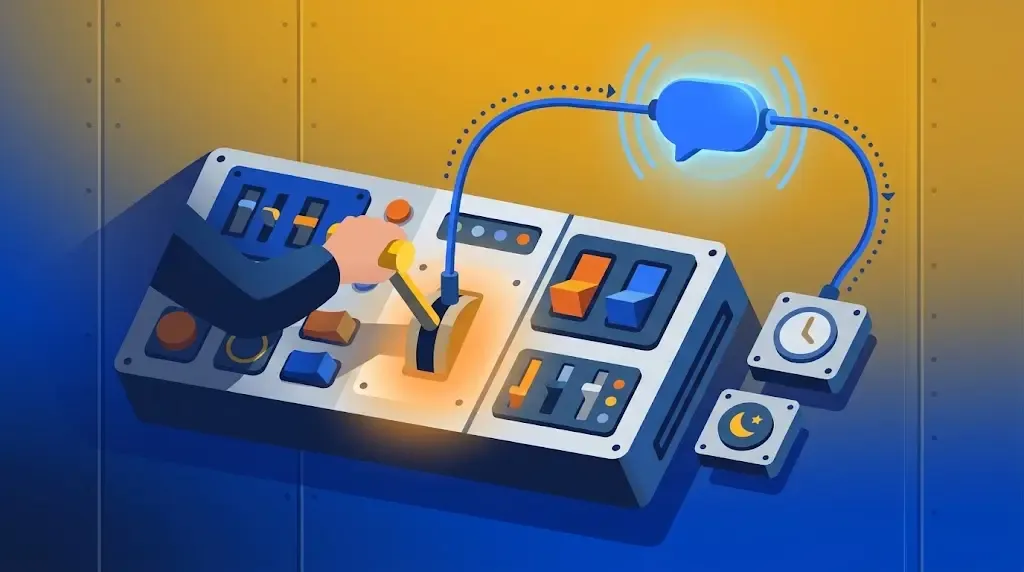
Knowing how to set up Messenger auto reply can help businesses respond to customers instantly, even when no one is available to answer messages. Whether you receive a few inquiries each day or hundreds of Messenger conversations, automatic replies ensure customers know their message has been received and when they can expect a response.
Meta provides built-in automation features through Meta Business Suite, allowing Facebook Page owners to create instant replies, away messages, and other automated responses for Messenger.
This guide explains how to set up Messenger auto reply, when to use it, and how to create messages that improve the customer experience.
What Is Messenger Auto Reply?
Messenger auto reply is an automated message that is sent when someone contacts your Facebook Page through Messenger.
Depending on your setup, it can:
-
Welcome new customers
-
Confirm that a message has been received
-
Inform customers about business hours
-
Answer common questions
-
Direct customers to the next step
-
Let customers know when a team member will reply
Unlike a full chatbot, a standard auto reply usually sends a single message rather than continuing a conversation.
Why Use Messenger Auto Reply?
Customers often expect quick responses when contacting a business online. Even if your team cannot reply immediately, an automatic message helps reassure customers that their inquiry has been received.
Some benefits include:
-
Faster first response
-
Better customer experience
-
Reduced uncertainty
-
Professional communication
-
Support outside business hours
-
More consistent messaging
Auto replies are especially useful for businesses that receive frequent questions about products, delivery, pricing, or order status.
How to Set Up Messenger Auto Reply
Meta allows Facebook Page administrators to create automated responses through Meta Business Suite.
Follow these steps:
Step 1: Open Meta Business Suite
Log in to your Facebook account and switch to the Facebook Page you manage.
Open Meta Business Suite.
Step 2: Go to Inbox
From the left navigation menu, select Inbox.
This is where you manage Messenger and other supported customer conversations.
Step 3: Open Automations
Inside Inbox, click Automations.
Here you'll find several automation options, including:
-
Instant Reply
-
Away Message
-
Frequently Asked Questions
-
Other automation templates, depending on your account
Step 4: Turn On Instant Reply
Select Instant Reply.
Enable the automation and choose Messenger as the communication channel.
Step 5: Write Your Auto Reply
Create a message that is friendly, professional, and informative.
For example:
Hi! Thanks for contacting us. We've received your message and our team will get back to you during business hours. Thank you for your patience.
Keep the message short and easy to understand.
Step 6: Save Your Changes
Once you're happy with the message, click Save Changes.
Your Messenger auto reply is now active for new conversations.
Instant Reply vs Away Message
Many businesses confuse these two automation options.
| Feature | Instant Reply | Away Message |
|---|---|---|
| When it's sent | Immediately after a new customer message | During scheduled away hours or when your Page is marked away |
| Main purpose | Confirm message receipt | Inform customers you're currently unavailable |
| Best for | Everyday customer communication | After business hours, holidays, or temporary closures |
Using both appropriately helps customers know what to expect.
Best Practices for Messenger Auto Replies
Setting up automation is only the first step. The quality of your message also matters.
Keep It Short
Customers usually want confirmation that their message has been received.
Avoid writing long paragraphs.
Set Realistic Expectations
Instead of saying:
We'll reply immediately.
Use something like:
We'll respond as soon as possible during business hours.
Only promise response times your business can consistently deliver.
Be Friendly
A warm, conversational tone creates a better first impression.
For example:
Thank you for reaching out. We're happy to help.
sounds much more welcoming than a formal system notification.
Update Messages Regularly
If your business hours, delivery policies, or contact methods change, update your automatic replies to match.
Common Mistakes to Avoid
Businesses often make a few simple mistakes when setting up Messenger automation.
Using Generic Messages
Messages like:
Your inquiry has been received.
provide very little value.
Instead, include useful information such as response times or business hours.
Forgetting Human Support
Automation should not replace customer service.
Customers should always have a way to speak with a real person when necessary.
Writing Overly Long Responses
Auto replies should acknowledge the message, not explain everything your business offers.
Save detailed conversations for later in the chat.
When Should You Use Messenger Auto Reply?
Messenger auto replies work well for:
-
Online stores
-
Facebook sellers
-
Service businesses
-
Restaurants
-
Clinics
-
Educational institutions
-
Real estate agencies
-
Customer support teams
If customers regularly contact your business through Facebook Messenger, an automatic response can improve communication and reduce response delays.
For a more detailed guide on configuring Facebook Page automation, you can also read our article on How to Set Auto Reply on Facebook Page.
If you're looking to go beyond simple automatic messages and create interactive customer conversations, our guide on Facebook Chatbot explains how chatbots can automate customer support and sales.
Final Thoughts
Learning how to set up Messenger auto reply is one of the easiest ways to improve customer communication on Facebook. With Meta Business Suite, businesses can quickly create instant replies that acknowledge customer messages, provide useful information, and set clear expectations for response times.
As your business grows, you can expand beyond basic auto replies by adding FAQs, conversation flows, or chatbot automation. Starting with a well-written Messenger auto reply ensures every customer receives a prompt and professional first response, even when your team is offline.